Family safety, parental control, done right

One app.
Their whole world,
gently looked after.

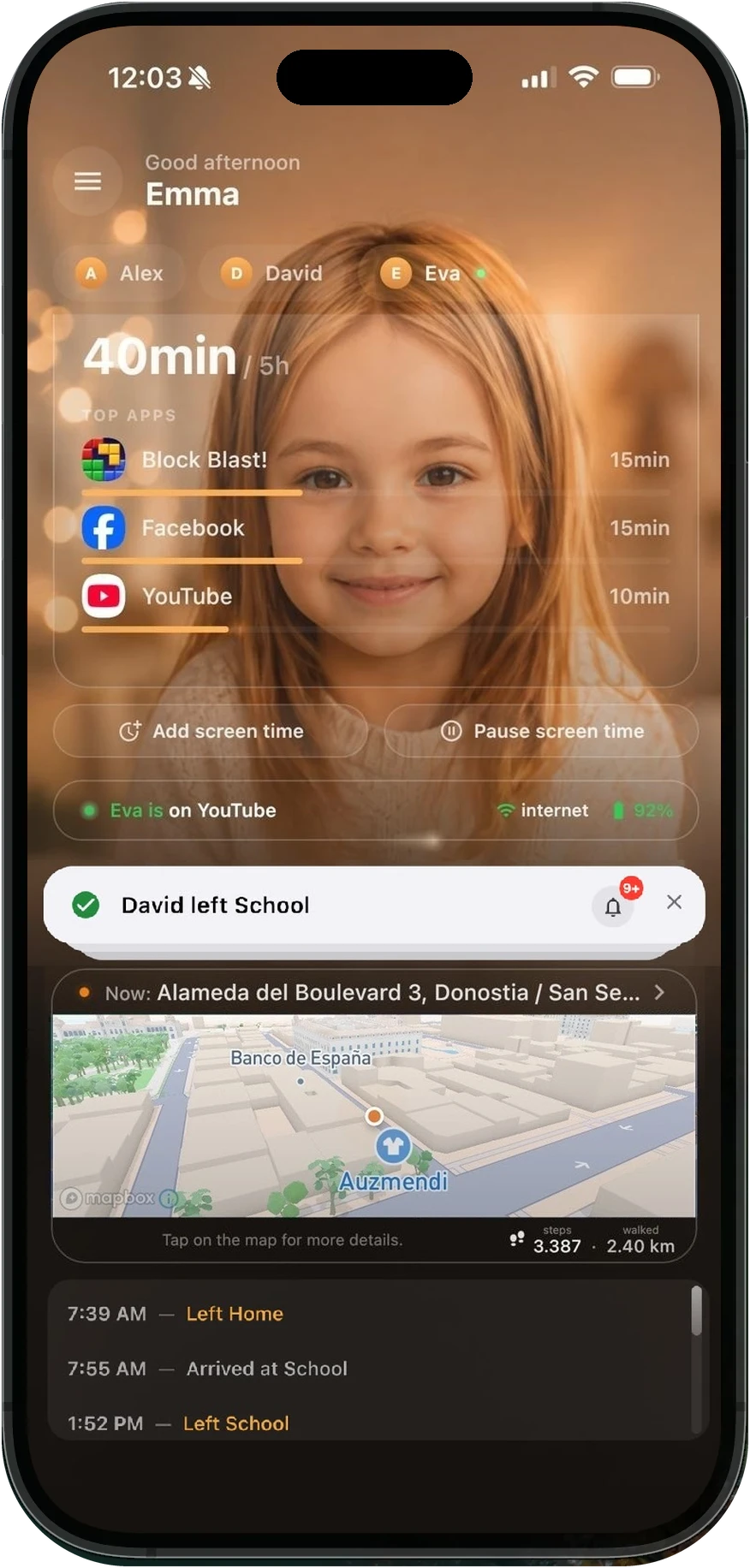
From a single dashboard you see where they are, how much screen time they've had, what they're doing right now — and step in with a tap when it matters.

Private by design · iPhone & Android · 31 languages · Set up in 1 minute
Choose your plan

Three plans.

Every plan starts with a 7‑day free trial — no card, nothing to cancel. It begins when you connect your first child’s phone, and when it ends you choose a plan.

Basic
€3.95/ month

Where they are and how long they’ve been on the phone — and one button if they need you.

1 parent or adult · up to 2 children
  • Live location
  • Live screen time
  • App schedules — block apps on a timetable
  • Panic button on their phone
  • Screen time history — today only
  • Location history — today only
  • No arrival, speed or no‑show alerts

Move up a plan whenever you like — same app, same phones, nothing to reinstall.

Start free trial
Premium
€10.95/ month

Get an alert if your child hasn’t arrived by the time you set, or if the vehicle they’re in goes over the speed you chose.

4 parents or adults · up to 8 children

Everything in Plus, plus:

  • No‑show alerts — told if they haven’t arrived somewhere by the hour you set
  • High‑speed vehicle alert
  • Cinematic route history
  • In‑app support chat

Everything heifamily can do, nothing held back — and room for grandparents, a nanny or a coach.

Start free trial

Prices in EUR · billed monthly through the App Store or Google Play, which show the final price in your currency before you buy

Same app. Two roles.

Parent—iPhone, or any Android

Child—Android Samsung, Google, Motorola, Xiaomi, Redmi, POCO. Recommended for the best experience.

Grows with them

Under 13–16 You decide what’s on. If your child switches something off, their phone shows them how to turn it back on.

From 13–16 Your child decides. They can switch features off, and Message Guard only starts with their OK. Whatever they choose, you’re told.

The age is the one each country in the EU and the EEA sets for children’s digital consent under the GDPR (Article 8): 13, 14, 15 or 16, depending on where your child lives. In France, children can switch features off even before 15, and Message Guard always needs their OK.

  • 16 Croatia, Germany, Hungary, Ireland, Liechtenstein, Luxembourg, Netherlands, Poland, Romania, Slovakia
  • 15 Czechia, Denmark, France, Greece, Slovenia
  • 14 Austria, Bulgaria, Cyprus, Italy, Lithuania, Spain
  • 13 Belgium, Estonia, Finland, Iceland, Latvia, Malta, Norway, Portugal, Sweden

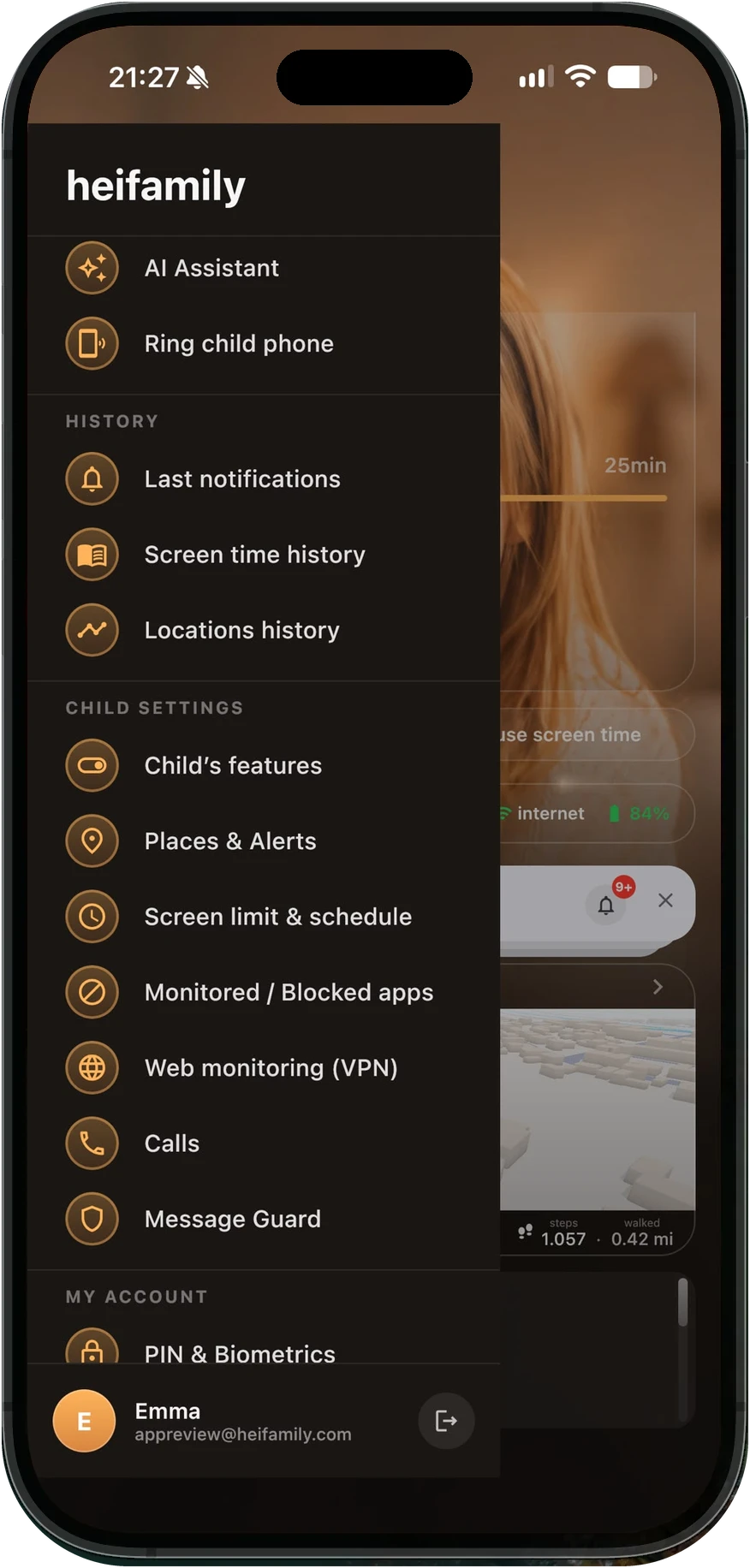
AI Assistant in the app

Skip the menus and just say it. Write or dictate in any of the app’s 31 languages: “Set Eva’s screen time to 16:00–21:00, Monday to Friday”, “No-show alert for School: 8:00 on weekdays, 9:00 on Wednesdays” or “Copy Eva’s schedule to all the children”, and the assistant prepares it for you. Most of what you do from the menu works this way, and nothing changes until you confirm. You don’t have to look for the app settings, just tell the assistant what you want.

Or ask it anything about heifamily or your child’s day: “What hours does Eva have on weekdays?”, “How long was David on TikTok in the last 7 days?”, “How do quiet hours work?” Answers about your child are read on your phone and aren’t sent to the AI. It can get things wrong, so check what it proposes.

No‑show alerts

Set the hour they should be at school, at home, at practice. If they haven’t arrived by then, you get a notification — and you can set a different hour for each day. This needs a recent position from their phone: without one, no alert goes out.

Places & geofencing

Label home, school and grandma's. Get a notification the moment they arrive or leave.

Screen time & schedules

Set daily limits, school-day and weekend windows, and per-app caps. They can ask for more screen time right from the heifamily app on their phone.

Blocked apps

Block any app instantly — only calling and emergency screens always stay open. A friendly screen appears the moment it opens.

Live location & routes

See where your child is in real time, and replay where they've been with smart, road-matched daily routes.

Live presence

Know what they're doing right now — the app they're in, plus battery and connection at a glance.

Smart alerts & quiet hours

Arrivals and departures, blocked sites, SOS — and silence exactly when you need it.

Two parents, one family

On Plus or Premium, invite the other parent. Same family, perfectly synced, zero setup twice.

Web monitoring

Eleven filters that run on the child’s phone itself — in every browser and every app — plus the sites you block or allow yourself. See how it works.

High‑speed alerts

Choose a speed for each child, from 40 to 160 km/h. If the vehicle they’re in goes over it, you get a notification.

Panic button

One press on their phone and you get an alert with where they are — even during quiet hours.

Ring their phone

Make their phone ring at its alarm volume, even on silent (though not in Do Not Disturb’s total silence) — for the times a message would not have been read anyway.

Calls

Block unwanted callers, and see how many calls were blocked today — never who called or when. On Android 10 and later.

Message Guard

heifamily checks the messages your child receives in chat, email and social apps against a list of warning words — on their phone, never on our servers. If one looks dangerous, your child sees a warning and can choose to tell you they need to talk. You never get the message, and neither do we. From a certain age (in France, always), your child has to agree to it too.

30 days of location and app history

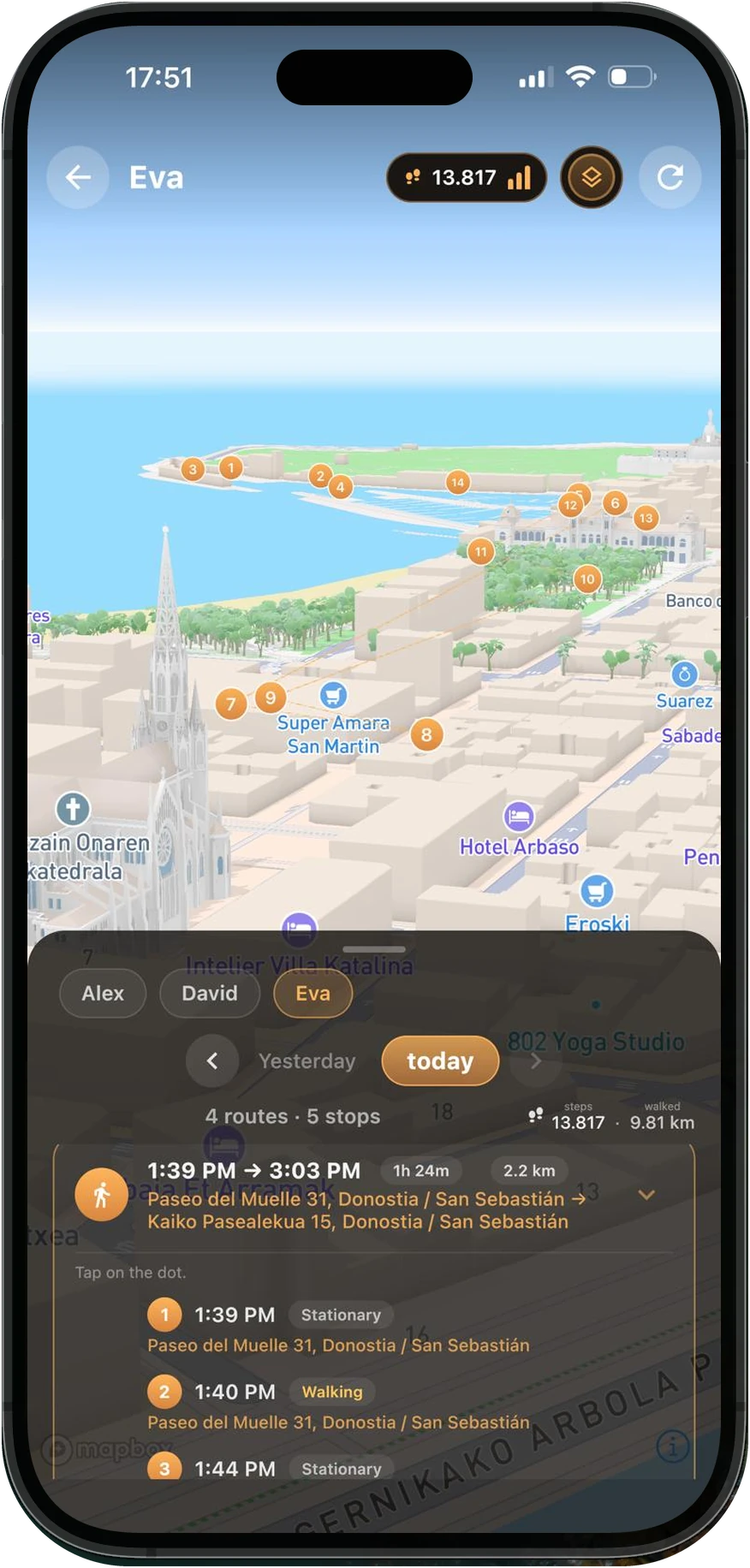
On Plus and Premium, you have 30 days of screen time and location history, with routes on beautiful 3D maps. On Premium, any route in Cinematic.

In-app support chat

On Premium, tell us right in the app if you have a problem, or ask the assistant to tell us.

Everything in one intuitive app

Keep them free.
Keep them safe.

Live location, screen time and Message Guard, working as one across iPhone and Android.

No ads, and no advertising trackers — not on their phone, not even on this website.

The door closes.
Your phone already knows.

Label the places that matter. heifamily tells you when your child leaves or arrives. No checking. No calling. Just a soft ping, and back to your coffee.

Home School
Alex left HomeTUE · 07:52 — example alert
Alex is walking · on his way to School
internet 63% 0 steps

Twelve minutes.
Zero wondering.

You watched none of it. heifamily did, and only spoke when it mattered: arrived at School, 08:04.

Most of the day, heifamily has nothing to say.

Steps add up. Routes take shape. Nobody panics.
This is what peace of mind actually looks like: boring.

web filtered · on-device 6,214 steps battery 41% 0 alerts

Limits that talk, not slam.

When time runs out, your child sees a friendly screen, not a wall. They can ask; you can give. From wherever you are, in one tap.

0h 00 of today’s 3h limit
D

David asks for 30 more minutes

"Almost done with my level 🙏" — sent from his friendly time's-up screen

Sent to David's phone instantly
Interactive demo · example data
WHEREVER THE PHONE GOES

The filter runs on their phone,
not on your Wi-Fi.

Every site the phone looks up is checked, in every browser and inside every app. A private tab changes nothing. Installing a different browser changes nothing. Leaving the house changes nothing.

Eleven categories, switched on per child

  • Adult content
  • Gambling
  • Malware & phishing
  • Drugs & vaping
  • Piracy & torrents
  • Scams & fake shops
  • Social networks
  • Ads & trackers
  • AI chatbots
  • VPN & proxy
  • YouTube Restricted Mode

Behind those switches sit more than 400,000 domains, refreshed every day. Updates wait for Wi-Fi, so the filter doesn't quietly eat their mobile data.

And then there’s everything the lists don’t cover

Type a site into Blocked sites and it’s blocked on their phone, everywhere, in seconds. One wrong block? Allowed sites keeps the category and allows the one site.

Some things shouldn’t be blocked. They should be turned down.

YouTube Restricted Mode hides the mature videos and leaves the rest working, and your child can’t switch it back off. With adult filtering on, Google, Bing and DuckDuckGo serve their SafeSearch versions.

Children research this. We assumed they would.

heifamily blocks VPN download pages, proxy sites and the encrypted DNS servers a phone can use to bypass filtering. If the filter is switched off on the phone, you’re told.

We don’t keep your child’s browsing history

heifamily doesn’t have one: not built at all. When the filter blocks something while they’re browsing, you get an alert saying what kind of site it was, such as gambling, but not its name.

IF A DAY EVER ISN'T ORDINARY

A message that looks wrong?
Your child decides what happens.

Message Guard checks the messages your child receives — on their phone, against a list of warning words in English and in the phone's language. If one looks dangerous, your child sees a warning and can send you “I need to talk”, or not. You get that sentence, never the message, and nothing about it ever reaches us.

A list of words doesn't understand context: it can warn about a harmless message and miss a dangerous one. A warning is a reason to talk, never a verdict.

What monitoring can't see

+
  • Only supported appsWhatsApp, Messenger, Instagram, Snapchat, Telegram, Signal, Discord, texts and other popular messaging apps. A message in an app that isn't supported isn't checked.
  • Only what the notification showsThe check reads message notifications. An app whose notifications are switched off isn't checked at all. If your child turns off message previews, or an app hides the text, there is nothing to read.
  • Not chat inside gamesFriend requests and direct messages are covered, but chat during a game usually doesn't create a notification, so it isn't checked.

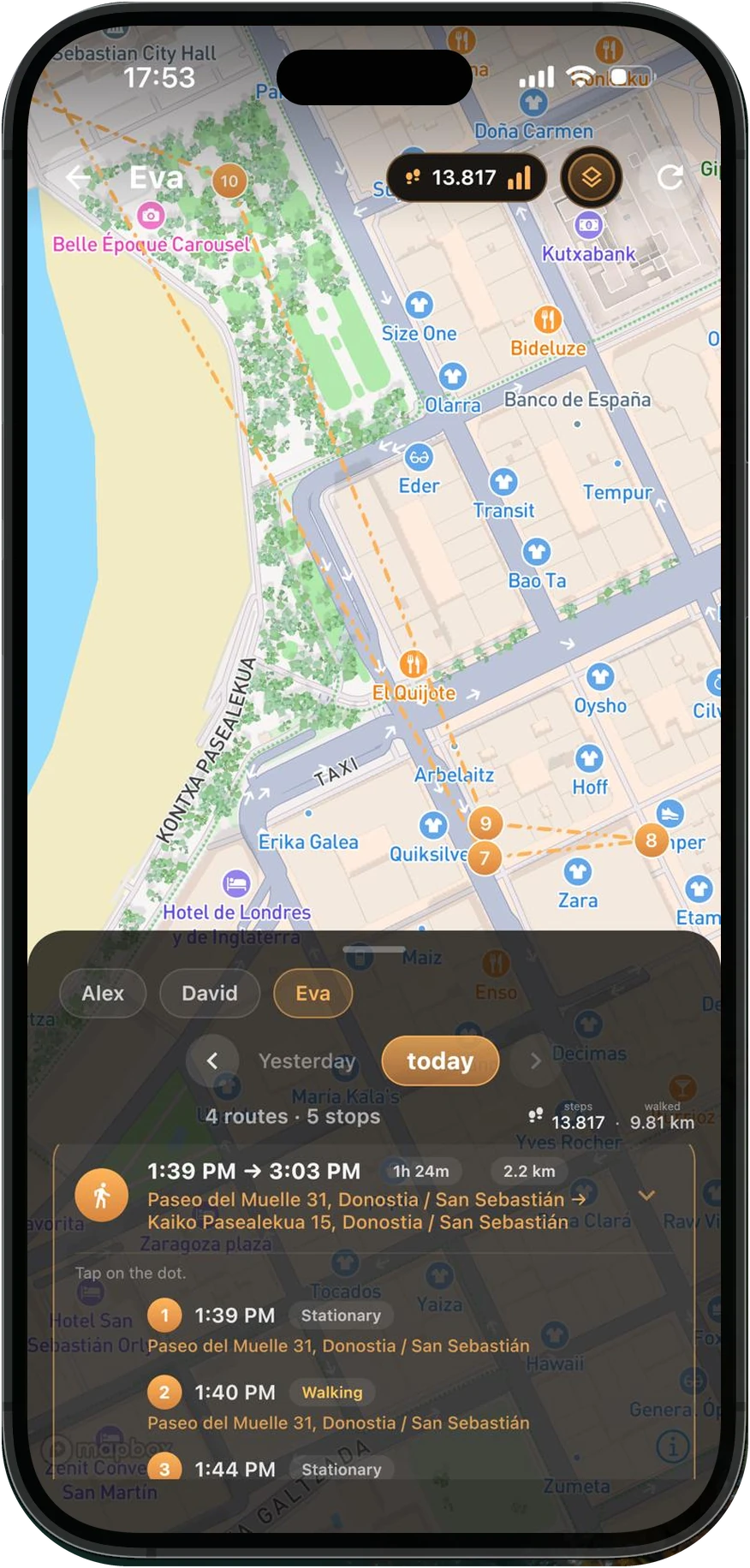
Their whole day, on one map.
Press play.

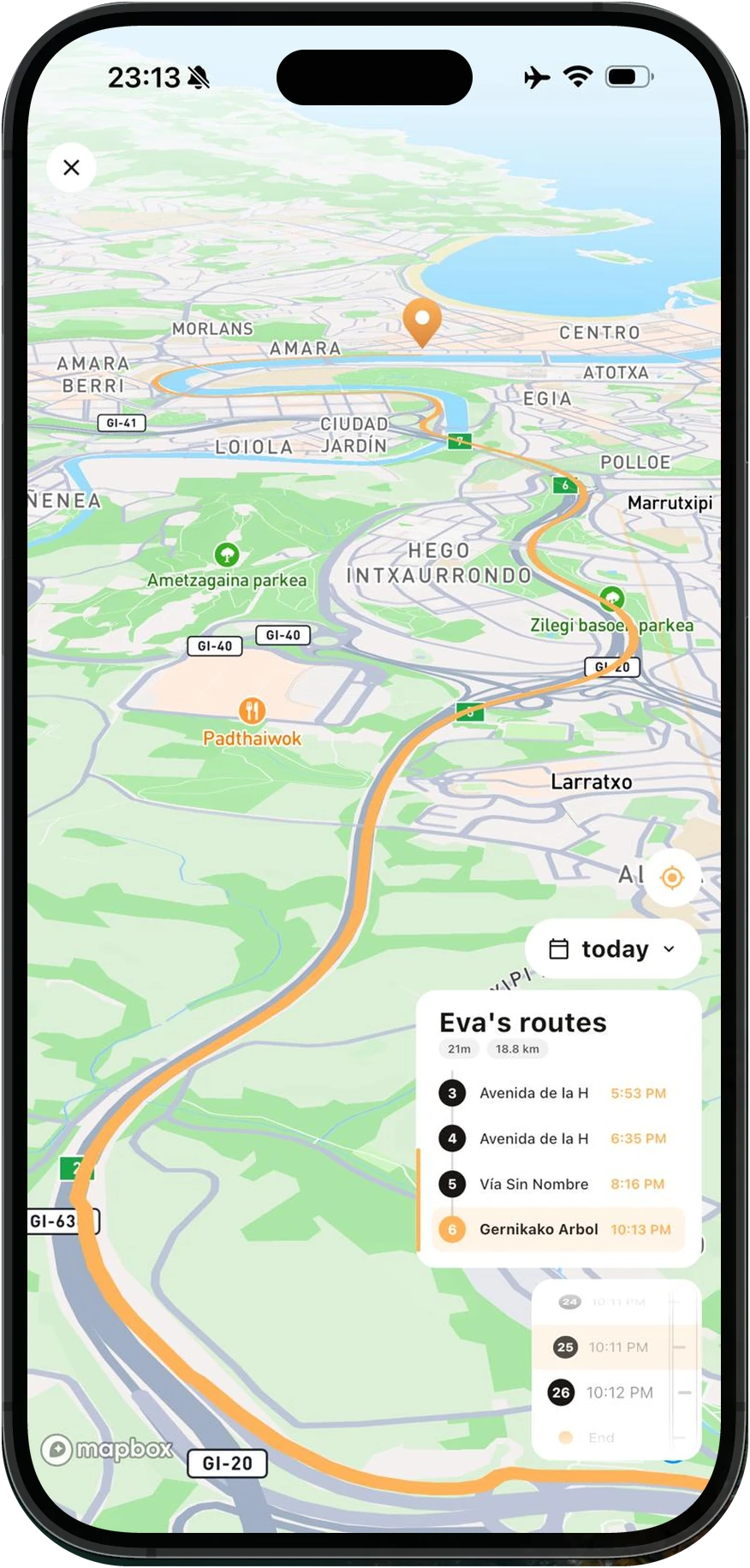
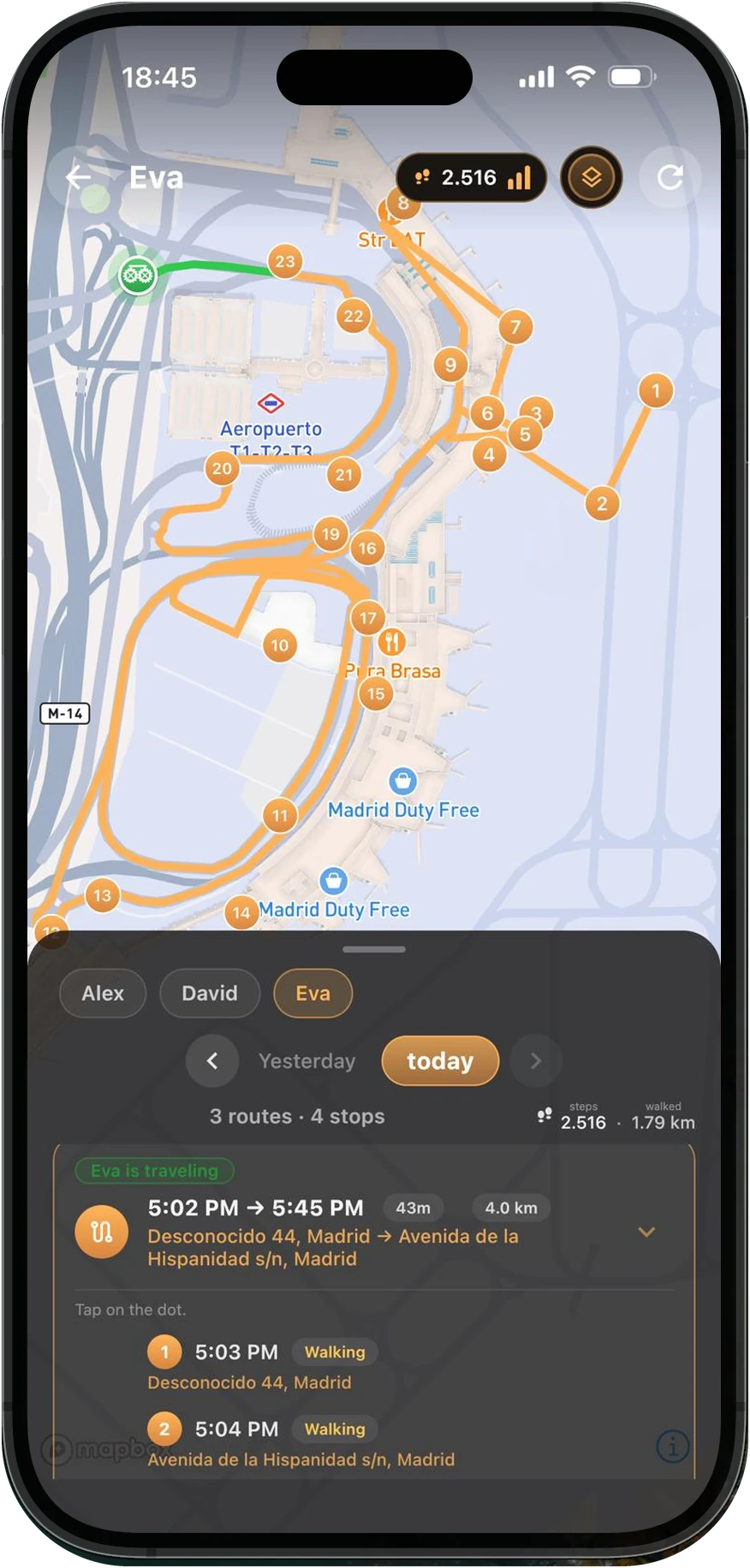
Every route walked or ridden, snapped to real streets on a 3D city map. Tap Cinematic and fly along it like a drone shot of an ordinary, wonderful Tuesday.

H Home · 07:52 1 School · 08:04 – 15:28 2 Home · 15:47 3 Park · 17:30
A child's routes on a 3D city map in heifamily, with the day's stop list
heifamily timeline of the day: 3 routes and 4 stops with times and durations

Nothing happened today.
That's everything.

Alex's asleep. You opened the app twice, for a minute. This is what heifamily is for: not watching more — worrying less.

Tuesday, in numbers

EXAMPLE DAY
Left Home07:52
School08:04 – 15:28
Screen time3h 00 · right at the limit
Routes · stops3 routes · 3 stops
Steps9,412
quiet hours until 07:00

Set up heifamily in three steps.

01

Create your family

Sign up, set a parent PIN, add each child.

02

Pair their phone

Install heifamily on your child's Android and connect it with a one-time code.

03

Live your day

You just check in when you like.

one secure, one-time code
4
7
2
9
5
3
Paired · Alex's phone
Straight answer

The phone being looked after has to be Android. On a child's iPhone, Apple doesn't let an app like ours do the whole job, so rather than sell you half a product, we don't sell it at all for that phone. You watch from whatever you have: iPhone or Android.
Tested on Samsung, Google, Motorola, Xiaomi, Redmi and POCO, down to their battery savers.

Built privacy-first

Private by architecture,
not by promise.

heifamily is engineered so your family's data stays your family's — minimal, protected, and yours to delete.

Other families can't see your data

Strict per-family access rules mean no other family can ever reach your family's data.

Checked where they arrive

Message Guard checks your child's incoming messages only on their phone. No message, sender or word found is sent to us or to you.

Hosted in the EU

Your family's database runs in Belgium. Maps, sign-in, notifications, crash reports and web-filter lookups, among other services, use providers that may process data outside the EU.

Sensitive actions need your PIN

Every sensitive action asks for your parent PIN — stored only as a strong hash.

Yours to delete

Delete a child’s profile and their history is erased at once. Delete your account and the family's data follows 24 hours later. Backup copies age out within 98 days.

Data minimisation

We keep only what a parent actually needs — never the running conversation, never more history than useful.

The most important thing we store is your trust. Everything else, you can delete yourself.

Read the full Privacy Policy →

We're here for you

Help and support.

Questions about setup, pairing or safety? We reply within a day, every day.

Email support

Write us anytime and get a thoughtful reply within 24 hours.

support@heifamily.com

Trust & safety

Our promises on privacy, data and child safety — in plain language.

Read the full Privacy Policy →
Which phones does heifamily work on?+
You watch from an iPhone or an Android phone, whichever you already have. The phone being looked after has to be Android — that is the only place a parental-control app is allowed to do the whole job.
  • Parent phone — iPhone, or any Android phone.
  • Child phone — Android: Samsung, Google, Motorola, Xiaomi, Redmi, POCO. These are the ones we test down to their battery savers, which is what actually decides whether the app is still running at 4pm. Other Android skins — ColorOS, MagicOS and realme UI — are aggressive enough to prompt the child to force-stop the app and switch off web filtering, so we don't recommend them for a child's phone.
Do I need a card to try heifamily?+
No card, and nothing to cancel. The seven-day trial is ours rather than the store's, so starting it doesn't mean handing your payment details to anyone.

One thing worth knowing: the seven days begin when you pair your child's phone, not when you create the account. There's no rush in between — the clock only starts once heifamily actually has something to look after.
Can my child see that heifamily is running?+
Yes — heifamily is transparent by design. A calm home screen shows your child their own screen time and lets them ask for more. It's built for trust between parents and kids, not secrecy.
Can my child uninstall heifamily, or switch a setting off?+
They can try — it's their phone, in their hands, and we won't pretend otherwise. What heifamily promises isn't that it can't happen. It's that you find out right away, and that you can check for yourself at any moment.
  • Until a certain age, the phone asks for it back. Switch a setting off and a card comes up on your child's screen within moments, naming it and showing the way to turn it on again.
  • From that age, it's their choice. That's 13, 14, 15 or 16, depending on where your child lives (in France, they can switch features off even before 15). They can then switch heifamily's features off, and nothing comes up on their screen asking for them back.
  • If it stays off, you're told, at any age. A few minutes is all it takes — and you're told again, in green, the moment it comes back on. Two settings only show up in Child app status, without an alert: Alarms & reminders and Call blocking.
  • Uninstalling isn't a quiet exit. Android refuses to remove heifamily while uninstall protection is on, so that has to go first — and the alert leaves for your phone the moment your child asks to turn it off, before the app is actually gone.

Your menu · My account

Child app status

Tap a child and you see every setting we watch, one by one:

  • Location
  • Background location
  • Location services (GPS)
  • Physical activity
  • Usage access
  • Notifications
  • Battery unrestricted
  • Display over other apps
  • Alarms & reminders
  • Uninstall protection
  • Call blocking
  • Content filter
  • Latest app version
A red mark names the setting that's off, so you can talk your child through it — or put it back yourself on their phone, if they didn't manage. And if heifamily is gone from that phone altogether, install it again and pair it from Replace child phone in the menu: the child and everything you've already seen stay exactly where they are, only the phone changes.
Will heifamily drain my child's battery?+
Keeping track of where a phone is costs something — we won't pretend otherwise. What we can tell you is that it's the part we've tuned hardest, because an app that flattens the phone by three in the afternoon deserves to be uninstalled. Every bit of it is spent deliberately:
  • It doesn't hold the GPS open. While the phone is still — most of a school day, and all night — heifamily asks where it is once every five minutes. It quickens only when your child is actually moving, and settles back the moment they stop.
  • Steps come from the phone's own step sensor — the tiny low-power chip built for counting them, which keeps its own tally whether we ask or not. Reading it costs practically nothing.
  • Nothing is streamed anywhere. Messages are checked only on the phone, and positions travel in batches rather than one at a time, so the radio isn't being woken up all day.

The plainest test is a phone doing nothing at all. We left a six-year-old Android sitting with heifamily running, untouched, for more than a week — and it never went flat. That's the thing people actually fear: an app quietly awake in the background all night, every night. This one isn't.

Will you read my child's private messages?+
No. Message Guard checks the messages your child receives only on their phone, against a list of warning words, and nothing about them is sent to heifamily or to you — there is nothing here for anyone to read. If a message looks dangerous, your child sees a warning and can choose to send you “I need to talk”. That sentence is all you get.
Does heifamily store my child's browsing history?+
No. heifamily blocks; it doesn't keep a list of everywhere your child has been. You're told when something is blocked — that alert is the record, and there isn't another one behind it. The ordinary sites they visit in between aren't collected, aren't stored, and aren't shown to you.

We had a browsing history once. We took it out, because a filter that works doesn't need a diary of everything it let through.

How do I cancel?+
Wherever you bought it — Google Play or the App Store — in the same place you manage every other subscription. heifamily takes you straight there from Manage subscription in your menu.
  • You keep what you've paid for. Cancelling stops the renewal; access runs to the end of the period you've already paid, and the app tells you how many days that is.
  • The trial has nothing to cancel. It never asked for a payment method, so nothing renews and nothing is charged.
  • Cancelling isn't erasing. Stopping the subscription doesn't delete anything, and you can delete your family's data yourself whenever you want. If you don't subscribe again within three months of your paid access ending, we delete it, together with your heifamily account.
See all questions
Can I use heifamily while travelling abroad?+
Yes. heifamily follows the phone, not the country — location, screen time and web filtering all carry on wherever your child is, roaming or on a local SIM. The only thing that changes is the one you'd expect: where there's no data, the day is kept on their phone and catches up the moment they're back online.
Does heifamily work in every EU country?+
heifamily is sold across the European Union and the wider European Economic Area — 30 countries, prices in euro (the store shows the final price in your currency) and the family's database in the EU. The full list is under Language & country at the top of this page. The app itself isn't fenced in by borders: once it's yours, it works wherever the phone does.
What happens if my child turns Location off?+
You're told, whatever their age. Location is one of the settings heifamily watches — both the app's permission and the phone's own GPS switch. If either stays off, the alert reaches you, and Child app status names which of the two it was. Until your child turns 13, 14, 15 or 16, depending on where they live, turning either off also brings up a card on their screen showing the way to restore it; from that age, it's their choice.

Their trail simply pauses until it's back, and nothing is quietly missing from your day — you know there's a gap, and why. If your child, from the age when it's their choice, switches heifamily's Location feature off, the last position and its alerts are deleted, and the earlier trail stays hidden until it's back on.

What if their phone has no signal, or runs out of data?+
Nothing is lost. Every position is written to your child's own phone first — signal or no signal — so a walk through a dead zone is still being recorded while it happens.
  • The whole stretch comes back at once. The moment the connection returns, everything waiting is sent in the order it happened and arrives on your phone as part of the day — snapped to the real roads and paths like the rest of the trail, not a straight line across the map.
  • The gap gets a name. heifamily records the minutes without a connection, so a quiet stretch in the timeline reads as no signal — not as an app that stopped working.
Will I know if their phone is about to die?+
You won't have to ask. Their battery sits on your main screen, right next to whether they're online, and it changes colour as it drops — green while there's plenty, amber through the middle, red at 30% and under.

It's a small thing that answers a big question. Most of the time, "they're not replying" and "their phone died an hour ago" are the same story — and this is where you see which one it is.

Can I block individual apps, not just categories?+
Both, and they work together. Any app on the phone can be blocked outright from your blocked-apps list. Separately, you can put a daily limit on a whole category — Games, Social Media, Video, Music, Communication — then open it and set a tighter limit on one app inside it. Where two limits overlap, the strictest one wins.
Can I set different screen-time rules for school days and weekends?+
Yes. The daily limit is set per day of the week, so Monday to Friday can look nothing like Saturday. You can also add time windows — the hours in which that day's screen time may be spent — so two hours of games doesn't become two hours at midnight.
Can my child ask for more screen time?+
Yes, and it's one of the better parts of the day. When they run out they can ask from their own phone, for a specific amount — it arrives on yours as "asks for 30 minutes more", and you grant or refuse it with a tap. Extra time you give applies to that day only; tomorrow goes back to the normal limit.

It turns a locked screen into a conversation, which is usually the point.

Can I pause screen time instantly?+
One tap. Pause screen time sits on your dashboard and takes effect on their phone straight away; resuming is the same tap again. It's for dinner, for homework, and for the moments no schedule could have predicted.
Can my child bypass screen time limits?+
Not quietly. The limit is enforced on the phone by heifamily itself — when the budget is spent, monitored apps stop opening — and the permissions that enforcement depends on are exactly the ones heifamily watches.
  • Switch off what it needs and you're told. Usage access, or permission to display over other apps: turn either off and you hear about it within minutes. Until your child turns 13, 14, 15 or 16, depending on where they live, their phone also asks for usage access back. From that age they can switch screen time off altogether — and you're told that too.
  • Removing the app means dropping its shield first. Uninstall protection has to be switched off before Android will remove heifamily at all — and that alone sends you an alert, before the app is gone.

None of it is impossible. All of it is visible — which, with a teenager, is the more useful promise.

Does web filtering work inside apps as well as browsers?+
Yes — it isn't a browser add-on. Filtering happens at the phone's network level, so it applies in every browser and every app on that phone, including the little in-app browser that opens when your child taps a link inside a social app. Sites you block yourself work the same way.
Can I allow a website that was blocked by mistake?+
Yes — add it to your allowed list and it goes through, even when a category above would have blocked it. Two honest caveats, because you'll meet them: a page that pulls its images or video from other sites may still load only partly, and an exception can't override the VPN & proxy category. If someone in the house genuinely needs a VPN, that category has to come off.
Which messages does Message Guard check?+
Messages your child receives in supported messaging apps — WhatsApp, Messenger, Instagram, Snapchat, Telegram, Signal, Discord, texts and other popular ones.

It works by reading message notifications, and that has an honest consequence we'd rather you heard from us: an app whose notifications are switched off isn't checked at all, and if previews are hidden there's nothing to read. A message in an app we don't support is never checked.

Does Message Guard show parents the message?+
No. You never get the message, who sent it or which words were found. If something looks dangerous, your child chooses whether to send you “I need to talk” — and if they do, that sentence is all you receive. Talking is how you find out the rest.
What happens if Message Guard finds something?+
Your child sees a warning on their phone, with two equal choices — send you “I need to talk”, or not now — and the number of the children's helpline, 116 111. You get nothing automatically, and heifamily doesn't contact anyone or decide anything.
Can I turn Message Guard off for one child?+
Yes — the switch is per child, not per family. An older teenager can be left unmonitored while a younger sibling isn't, which is usually how trust actually works at home. Switched off, nothing is checked for that child. From 13, 14, 15 or 16, depending on where your child lives (in France, at any age), turning it on also needs your child's OK on their phone.
Where is our family's data kept?+
Mostly in the European Union. The database and the functions that work on it run in region europe-west1, in Belgium — a location chosen when the project was created and one that can't quietly be moved afterwards. Some services we rely on are global and may process data outside the EU: Mapbox (maps, address lookup and snapping your child's routes to roads, using their positions), Google and Apple (sign-in, notifications, crash reports, app integrity checks, maps and addresses — and Google sends our e-mails), Cloudflare (looking up the sites your child's phone opens, while the web filter is on), and RevenueCat and the app stores (subscriptions). The Privacy Policy describes them, with the safeguards we rely on.
Can two parents share one family?+
Yes — and it doesn't have to stop at two, or even at parents. A seat is simply an adult you trust with your child's day: a second parent, a grandparent, a nanny, a coach. Invite them and you all see the same family, perfectly in sync, each with your own secure sign-in.
  • Basic — one adult.
  • Plus — two adults.
  • Premium — up to four.

You can move up a plan whenever the family grows — same app, same phones, nothing to reinstall.

Can both parents change settings?+
Yes — every adult you invite has the same day-to-day control: schedules, blocked apps, filtering, places, screen time. Two things stay with the parent who set the family up, and both are the kind you'd want held in one pair of hands: the subscription — plan changes and cancellation happen from the store account that paid — and deleting the account.
Will I see when the other parent changes something?+
You'll see the change itself, not a log of who made it. Settings are shared and live: if the other parent lifts a limit or adds a place, it's on your phone too, immediately.

heifamily doesn't keep a history of who changed which setting and when. The one exception is switching a monitoring feature on or off, by a parent or by your child: heifamily records who did it and when, as proof of what was decided, but it isn't something you can browse in the app.

How many children can I add?+
Two on Basic, and up to eight on Plus or Premium. Each child has their own phone, their own screen time and their own history — nothing is mixed between them, and nothing one child does shows up on another's day.
What happens when they get a new phone?+
You move them across; you don't start over. Install heifamily on the new phone and choose Replace child phone in your menu — the child, their history, their schedules and their places all stay exactly where they are. Only the phone changes.

The old phone stops being trusted the moment the new one is paired, so a handed-down or sold phone can't keep writing to your family.

What happens when my free trial ends?+
Nothing is charged, because nothing was ever collected. When the seven days are up, heifamily stops showing you your family until you choose a plan — no card on file, no plan picked for you, no quiet renewal you have to catch.

If you still haven't chosen a plan a few days later, heifamily stops on your child's phone too: it stops collecting data and applying limits, and it switches off uninstall protection. Choose a plan and heifamily starts again by itself, except for uninstall protection: Android only lets you turn it back on from your child's phone, where heifamily shows a banner for it. The same goes for any other permission switched off in the meantime. If you don't choose a plan within three months of the trial ending, we delete your family, its data and your heifamily account. And if you subscribe during the trial, the paid month starts that day — the free days you had left aren't added on top, and you keep the features of the bigger plans until the trial ends.

Can I change plans later without reinstalling anything?+
Same app, same phones, nothing to set up again. Moving up applies right away. Moving down starts at your next renewal, so you keep everything you have today until then — you're never cut short for a change you made mid-month.
What happens if a subscription payment fails?+
You're told, and nothing is switched off behind your back. A card that didn't go through isn't treated as "they left" — the store keeps retrying, and heifamily shows you the problem with a direct way to fix the payment method. Only if it stays unresolved does access stop, and by then you'll have known about it for a while.
Can I restore my subscription on a new phone?+
Yes. Sign in on the new phone and your subscription comes with your account. If it doesn't show up immediately, Restore purchases in the app fetches it from the store — just sign in to the same store account you bought it with, since that's the one holding the receipt.
What happens to our data if we leave?+
You're always in control. Delete a child profile and that child's history is erased right away; delete your account and the family's data is deleted 24 hours after you ask. In our backups, it ages out within 98 days. A few billing records and the identifiers that stop repeat free trials are kept longer; the Delete account page lists them.
WED · 07:52

Tomorrow, the door closes at 07:52 again.

Let it be just a door.

Tonight, when the house goes quiet — you'll know their day was okay.